Install Openbsd78 On Raspberry 3b
My first thought was to install FreeBSD on this Raspberry Pi 3B, unfortunatelly FreeBSD doesn’t support the built-in WiFi, so have moved to OpenBSD 7.8.
This installation instruction mostly comes from mipam007.
Host computer is MacOS.
The plan
My plan is to boot from USB by changing the booting order through Raspberry Pi OS, though it never work.
So the backup plan is to boot from SD Card which has miniboot.img burned, when it goes to the boot process, interrupt it and shoot command boot sd1a:/bsd to boot from USB stick which has install78.img burned, sadly it failed too and showed the following errors:
cannot open sd1a:/etc/random.seed: No such file or directory
Here has an explain what’s random.seed and offer a solution but didn’t work to me.
So finally I just boot from SD Card which has miniboot.img and insert USB stick which has install78.img, then install straight forward, choose sd1 (USB) as source of filesets, but just can not install the following three file sets:
- bsd.mp
- bsd.rd
- xbase78.tgz
But luckily it can work after reboot, later I fixed and installed these three file sets.
Update RPI3b firmware
Download Raspberry Pi OS lite and write to SD card, the tool for burning image is Raspberry Imager which can enalbe SSH, set up password even WiFi, recommended.
- sudo echo “enable_uart=1” » /Volumes/bootfs/config.txt
- sudo touch /Volumes/bootfs/ssh # create this empty file or SSH won’t work
- Start RPI & ssh to it
- sudo apt update -y
- sudo apt full-upgrade -y
- sudo reboot
- sudo apt autoremove
- sudo rpi-update # Update rpi firmware
*Regarding this rpi-update, it requires to download from GitHub and there is problem with the conneciton here, so I chose to Download it in advance and update it locally as below:
curl -L https://codeload.github.com/raspberrypi/rpi-firmware/zip/refs/heads/master -o rpi-firmware-master.zip

#1. 切换到root用户(第一次切到root记得用sudo passwd root**)
su

# 2. 创建一个.rpi-firmware目录,然后进入并解压
mkdir /root/.rpi-firmware
cd /root/.rpi-firmware && unzip /root/rpi-firmware-master.zip

cp -r ./rpi-firmware-master/* ./

# 执行本地更新
UPDATE_SELF=0 SKIP_DOWNLOAD=1 rpi-update

# 重启
reboot
WiFi blocked
Login again and you will see the following error:
Wi-Fi is currently blocked by rfkill.
Use raspi-config to set the country before use.
rfkill = radio frequency kill, is a manage system for WiFi and BulueTooth. Hereby explain what is rfkill:
rfkill is a small userspace tool to query the state of the rfkill switches, buttons and subsystem interfaces. Some devices come with a hard switch that lets you kill different types of RF radios: 802.11 / Bluetooth / NFC / UWB / WAN / WIMAX / FM.
So what need to do is to set the country code through command raspi-config and choose Change wlan country.
Set to boot from USB
Upates: this doesn’t work.
sudo echo program_usb_boot_mode=1 | sudo tee -a /boot/config.txti
Then reboot and check the result of following command:
vcgencmd otp_dump | grep 17:
If everything works, it should show you something like below:
17:3020000a
** You can use the following command to reset above.**
sudo sed -i 's/program_usb_boot_mode=1//g' /boot/config.txt
If you need more details, you can check:
Connect USB-UART serial cable to PC/MAC
- USB-UART GND –> RPI GND
- USB-UART TXD –> RPI RXD
- USB-UART RXD –> RPI TXD
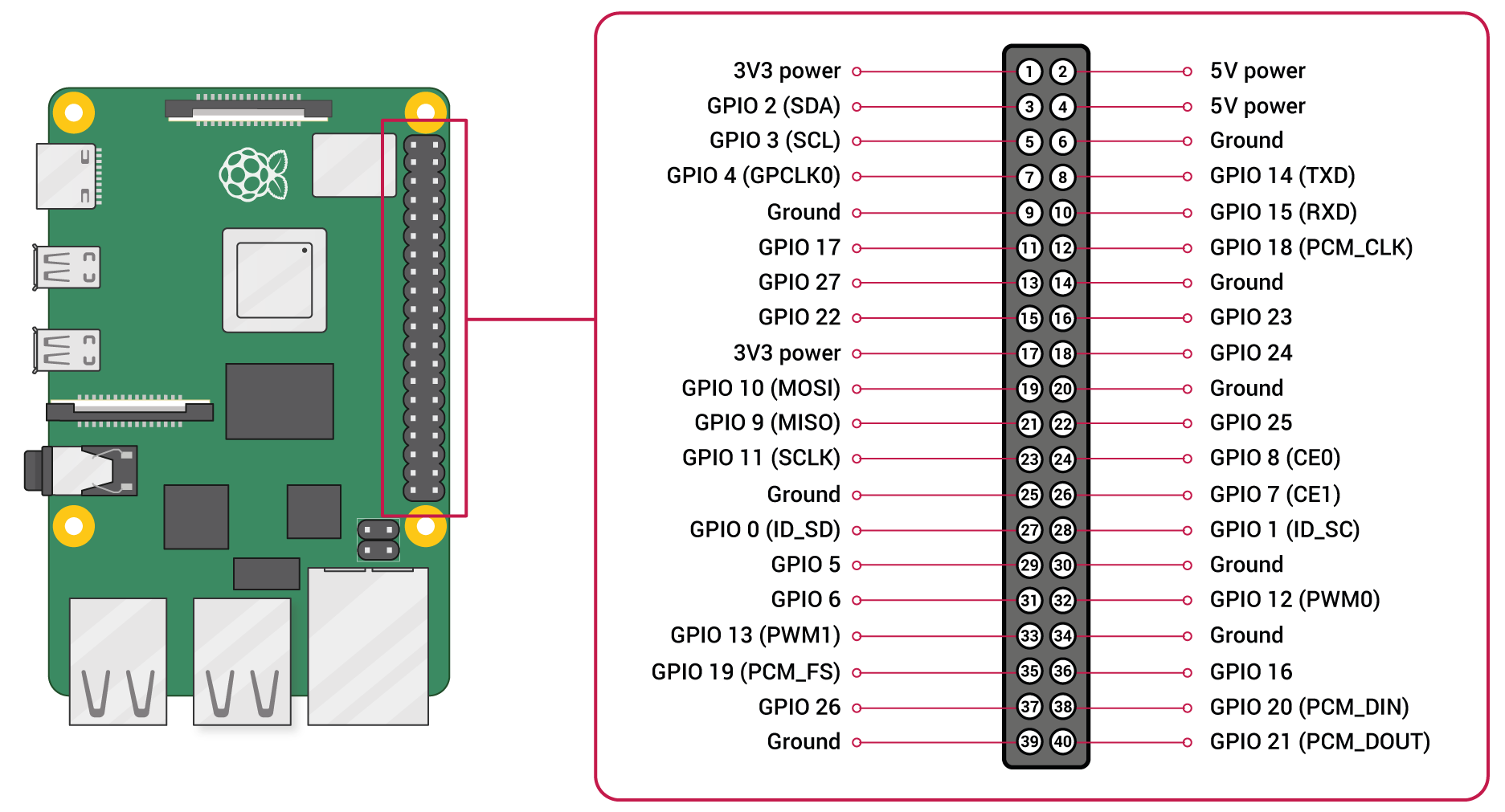
Find the right tty port in /dev
ls -l /dev/tty.usbserial* ## in MacOSls -l /dev/ttyUSB* ## in Linuxls -l /dev/cu.usbserial* ## in OpenBSD
And two commands to connect rpi to pc/mac as below:
sudo screen /dev/tty.usbserial-1110 115200 # works in Macsudo cu -l /dev/cu.usbserial -s 115200 # works in OpenBSD
After above command executed, insert the USB stick and power on the Raspberry Pi and you will see something as below on your Mac screen:
U-Boot 2025.07 (Oct 06 2025 - 07:00:47 -0600)

DRAM:  948 MiB
RPI 3 Model B (0xa22082)
Core:  87 devices, 13 uclasses, devicetree: board
MMC:   mmc@7e202000: 0, mmcnr@7e300000: 1
Loading Environment from FAT... Unable to read "uboot.env" from mmc0:1...
In:    serial,usbkbd
Out:   serial,vidconsole
Err:   serial,vidconsole
Net:   No ethernet found.

starting USB...
USB DWC2
Bus usb@7e980000: 3 USB Device(s) found
       scanning usb for storage devices... 0 Storage Device(s) found
Hit any key to stop autoboot:  0
U-Boot>
Setting NIC after reboot
This can be done two ways:
- DHCP
- Static IP
Before you dive deeper, fire command ifconfig to see what NIC you have:
rp3# ifconfig
lo0: flags=2008049<UP,LOOPBACK,RUNNING,MULTICAST,LRO> mtu 32768
	index 2 priority 0 llprio 3
	groups: lo
	inet6 ::1 prefixlen 128
	inet6 fe80::1%lo0 prefixlen 64 scopeid 0x2
	inet 127.0.0.1 netmask 0xff000000
enc0: flags=0<>
	index 1 priority 0 llprio 3
	groups: enc
	status: active
bwfm0: flags=808803<UP,BROADCAST,SIMPLEX,MULTICAST,AUTOCONF4> mtu 1500
	lladdr 00:00:00:00:00:00
	index 3 priority 4 llprio 3
	groups: wlan
	media: IEEE802.11 autoselect
	status: no network
	ieee80211: nwid ""
smsc0: flags=808843<UP,BROADCAST,RUNNING,SIMPLEX,MULTICAST,AUTOCONF4> mtu 1500
	lladdr b8:27:eb:f8:46:7f
	index 4 priority 0 llprio 3
	groups: egress
	media: Ethernet autoselect (100baseTX full-duplex)
	status: active
	inet 192.168.31.120 netmask 0xffffff00 broadcast 192.168.31.255
pflog0: flags=141<UP,RUNNING,PROMISC> mtu 33136
	index 5 priority 0 llprio 3
	groups: pflog
Apparently two NICs available: bwfm0 (wifi) and smsc0 (ethernet)
For DHCP, just add the following line to /etc/hostname.smsc0 and /etc/hostname.bwfm0
rp3# cat /etc/hostname.smsc0
dhcp
rtsol
For Static IP, add the followings:
cat /etc/hostname.smsc0
inet 192.168.31.120 255.255.255.0
Also default gateway and DNS server needed for static IP
cat /etc/mygate
192.168.31.1
cat /etc/resolv.conf
domain rp3.yohoho.home
nameserver 192.168.31.1
nameserver 114.114.114.114
Install missing file sets
As mentioned earlier, three file sets are not installed during the installation: bsd.mp, bsd.rd, xbase78.tgz
We are gonna use command syspatch to install them, but we need to download them in advance and no downloading tool available.
- Change mirror by putting this line into /etc/installurl: https://mirror.iscas.ac.cn/OpenBSD/
- Install downloading tool:
pkg_add -v curl - Move to /tmp:
cd /tmp - Download file sets:
curl -O https://mirror.iscas.ac.cn/OpenBSD/7.8/arm64/bsd.mp - Extract: *tar -zxvf xbase78.tgz`
- Run command to install them:
syspatch
Here is the source: How to install sets after installation
Set timezone and upgrade installed packages
ln -sf /usr/share/zoneinfo/Asia/Shanghai /etc/localtime or tzsetup
pkg_add -Uu
Then reboot.
http instead of disk for installing file sets
Finally found the file sets on USB stick has problem, don’t know why even burned several times with different tools, anyway it’s better to use http.
When the installer asks for where is the file sets, choose http and offer the following information:
- Location of sets? (disk http nfs or ‘done’) [done] http
- HTTP Server? (hostname or ‘done’) [mirror.iscas.ac.cn]
- Server directory? [OpenBSD//7.8/arm64]
TLS handshake failure
After reboot it shows the following error when try to install package or syspatch:
TLS handshake failure: ocsp verify failed
The problem is about the date, it has wrong date, to fix it:
- rdate time.cloudflare.com ## temporarily
- date YYYYMMDDHHMM ## also temporary
- add
ntpd_flags="-s"to/etc/rc.conf.localand reboot - if you’re with VirtualBox, check “Hardware Clock in UTC Time”
How to boot from USB?
Changing the settings in Raspberry Pi, this solution doesn’t work to me, but I found another solution from UnitedBSD, it’s kind of simple, just boot the SD Card and interrupting the autoboot and run boot_targets usb0 mmc0 dhcp then boot command followed:
U-Boot 2018.03 (Mar 20 2018 - 04:28:27 -0600)

DRAM:  948 MiB
RPI 3 Model B (0xa02082)
MMC:   mmc@7e202000: 0, sdhci@7e300000: 1
Loading Environment from FAT... *** Warning - bad CRC, using default environment

Failed (-5)
In:    serial
Out:   vidconsole
Err:   vidconsole
Net:   No ethernet found.
starting USB...
USB0:   Core Release: 2.80a
scanning bus 0 for devices... 5 USB Device(s) found
       scanning usb for storage devices... 1 Storage Device(s) found
Hit any key to stop autoboot:  0
U-Boot> setenv boot_targets usb0 mmc0 dhcp
U-Boot> boot


Device 0: Vendor: SanDisk Rev: 1.00 Prod: Ultra Fit
            Type: Removable Hard Disk
            Capacity: 14663.6 MB = 14.3 GB (30031250 x 512)
... is now current device
Scanning usb 0:1...
Found EFI removable media binary efi/boot/bootaa64.efi
Scanning disk mmc@7e202000.blk...
Card did not respond to voltage select!
Scanning disk sdhci@7e300000.blk...
Disk sdhci@7e300000.blk not ready
Scanning disk usb_mass_storage.lun0...
Found 6 disks
97355 bytes read in 90 ms (1 MiB/s)
## Starting EFI application at 01000000 ...
>> OpenBSD/arm64 BOOTAA64 0.12
boot>
Wireless wifi configuration
fw_update# install wireless card firmwareifconfig# as show up bwfm0 is the wireless NICvi /etc/hostname.bwfm0# add two lines as below
nwid 'SSID-name' wpakey 'password-here'
inet autoconf
Then reboot and unplug wired cable. For more information you can check this OpenBSD FAQ.
Laggy SSH connection through wifi
First of all, it has no problem with Ethernet wired cable. But with wifi, after ssh login, the every typing needs about 5s to response, so it’s defenitely about the Raspberry Pi’s wireless problem.
Ever tried the following two methods but neither work:
- Removing comment out ‘UseDNS no’
- Set ‘ClientAliveInterval’ to 10 in SSH server’s configuration
So, gotta try disabling the power management of the WiFi card:
# Raspberry Pi OS arm64
iwconfig wlan0 power off

# Fedora 33
mcli connection modify wlan0 wifi.powersave disable

# If use USB NIC then modify by `vi /boot/firmware/config.txt` and add one line:
dtoverlay=disable-wifi
OpenBSD as NFS client
mount_nfs -T 192.168.31.240:/fs/1000/nfs/music /var/mpd/music
The option -T is to force use TCP, or you will encounter error like below:
NFS Portmap: RPC: Program not registered
To make the mount persistent, add it to /etc/fstab
192.168.31.240:/fs/1000/nfs/music /var/mpd/music nfs -3,-T,ro,nodev,nosuid,soft,intr 0 0
Check more on this OpenBSD Handbook.
Install mpd music server and client ympd
music_directory		"/var/mpd/music"
playlist_directory	"/var/mpd/.mpd/playlists"
log_file                "/var/log/mpd/mpd.log"
bind_to_address         "localhost"
db_file                 "/var/mpd/mpd.db"